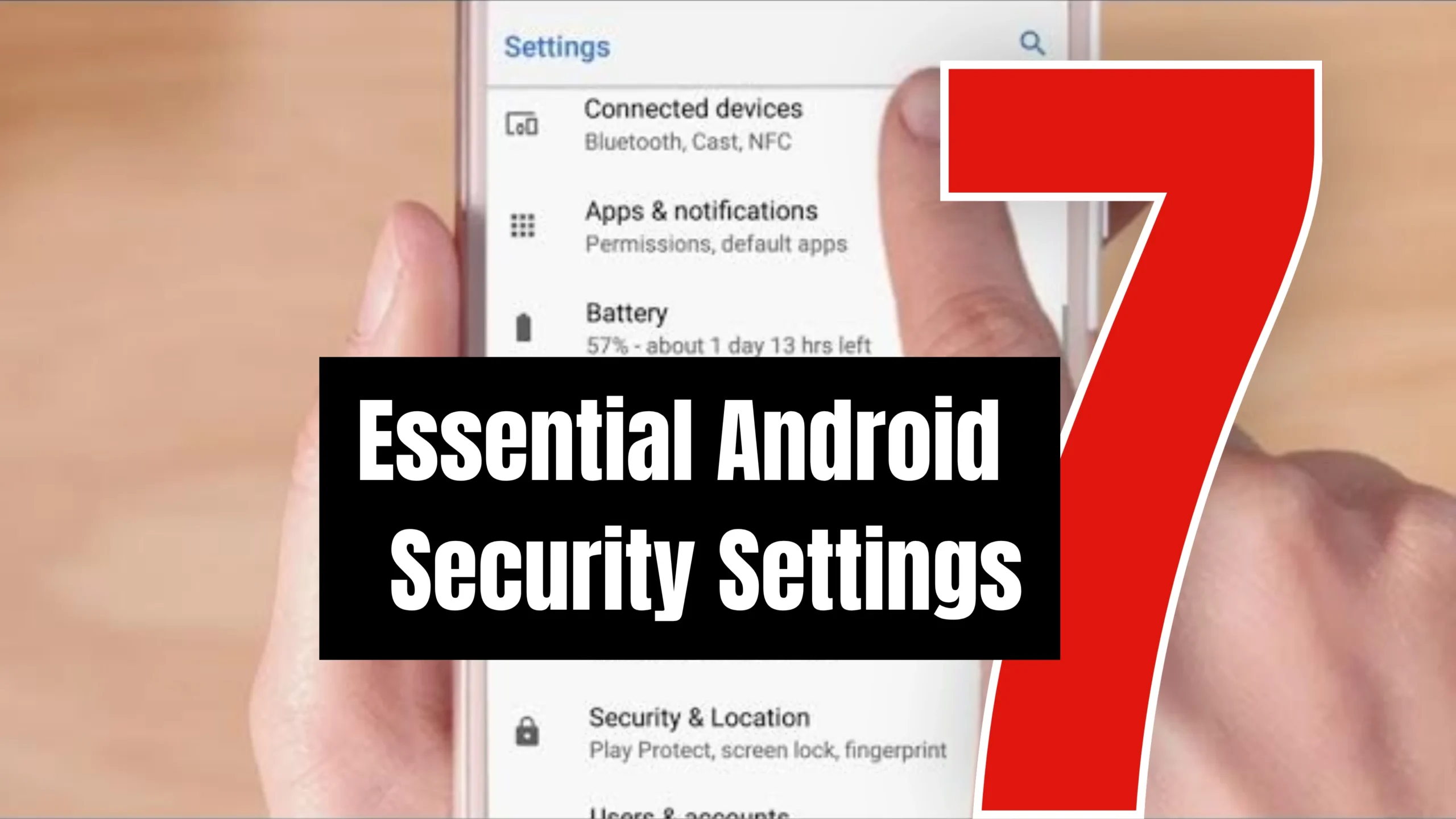
If you’re still using your old phone without these security settings enabled, make sure to change them immediately. When setting up a new smartphone, most people focus on choosing a wallpaper and downloading apps. However, security settings often get overlooked, even though they play a crucial role in protecting your personal information and device.
Default Phone Settings Can Leave Your Data Vulnerable
Every smartphone comes with certain pre-configured settings known as default settings. These settings may leave your important data and lock screen less secure. By adjusting them, you can reduce the risk of data theft, unauthorized access, and device tracking. If you’re still using your phone with the default settings, now is the time to make these changes. Doing so will help protect both your privacy and your personal data.
Strengthen Your Screen Lock
The first step is to secure your screen lock. A strong lock screen helps keep your personal information safe if your phone is lost or stolen. Use security options such as a PIN, Password, Fingerprint, or Face Unlock. Avoid using easy combinations like 1234, 0000, or your date of birth as your PIN or password.
Enable Two-Factor Authentication (2FA)
A password alone is not enough to secure your accounts. If someone gains access to your password, they can potentially log in to your accounts. To add an extra layer of protection, enable Two-Factor Authentication (2FA) on your Google Account and other important accounts.
With 2FA enabled, your account remains protected even if your password is compromised. During login, you’ll need additional verification through an OTP or an authentication app.
Turn On Find My Device
If your phone is lost or stolen, the Find My Device feature can help you locate it. Once enabled, you can view your phone’s location, remotely lock the device, erase data if necessary, and even make the phone ring—even when it is set to Silent Mode.
Avoid Granting Unnecessary App Permissions
Many apps request permissions that they don’t actually need. For example, a photo-editing app may ask for access to your microphone or contacts, even though those permissions are not required for its functionality.
Most users grant all permissions without reviewing them while installing apps from the Play Store. Go to Settings > Privacy > Permission Manager and review app permissions regularly. Disable any unnecessary access.
When an app requests location access, choose “Allow only while using the app” or “Don’t Allow” whenever possible. This prevents continuous location sharing and also helps conserve battery life by reducing background activity.
Keep Google Play Protect Enabled
Google Play Protect acts as your phone’s digital bodyguard. It scans installed apps and identifies potentially harmful or suspicious applications.
Malicious apps can sometimes attempt to steal personal data without your knowledge. Play Protect helps detect and block such threats, making it an important security feature for every Android device.
Keep Auto Updates Turned On
Regular software updates often include fixes for newly discovered security vulnerabilities. If you ignore updates, your device may become more vulnerable to cyberattacks.
Enable Auto Update so that the latest security patches and improvements are installed automatically whenever they become available.
Avoid Installing APK Files from Unknown Sources
One of the most important security practices is to avoid downloading APK files from unknown websites. These files may contain viruses, malware, or other harmful software that can compromise your phone and personal data.
If installing an APK is absolutely necessary, verify the source carefully and ensure it comes from a trusted provider. Checking the authenticity of the file beforehand can help you avoid malware and security risks.
FAQs
The most important settings include a strong screen lock, Two-Factor Authentication (2FA), Find My Device, Google Play Protect, app permission controls, auto updates, and avoiding unknown APK downloads.
2FA adds an extra layer of security by requiring a second verification step, such as an OTP or authentication app, even if your password is compromised.
Find My Device lets you locate, lock, ring, or remotely erase your Android phone to protect your personal data if it is lost or stolen.
Installing APK files from unknown sources is risky because they may contain malware, spyware, or viruses that can compromise your device and personal information.
Google Play Protect continuously scans apps on your phone for harmful behavior and helps detect and remove potentially dangerous applications before they can cause damage.